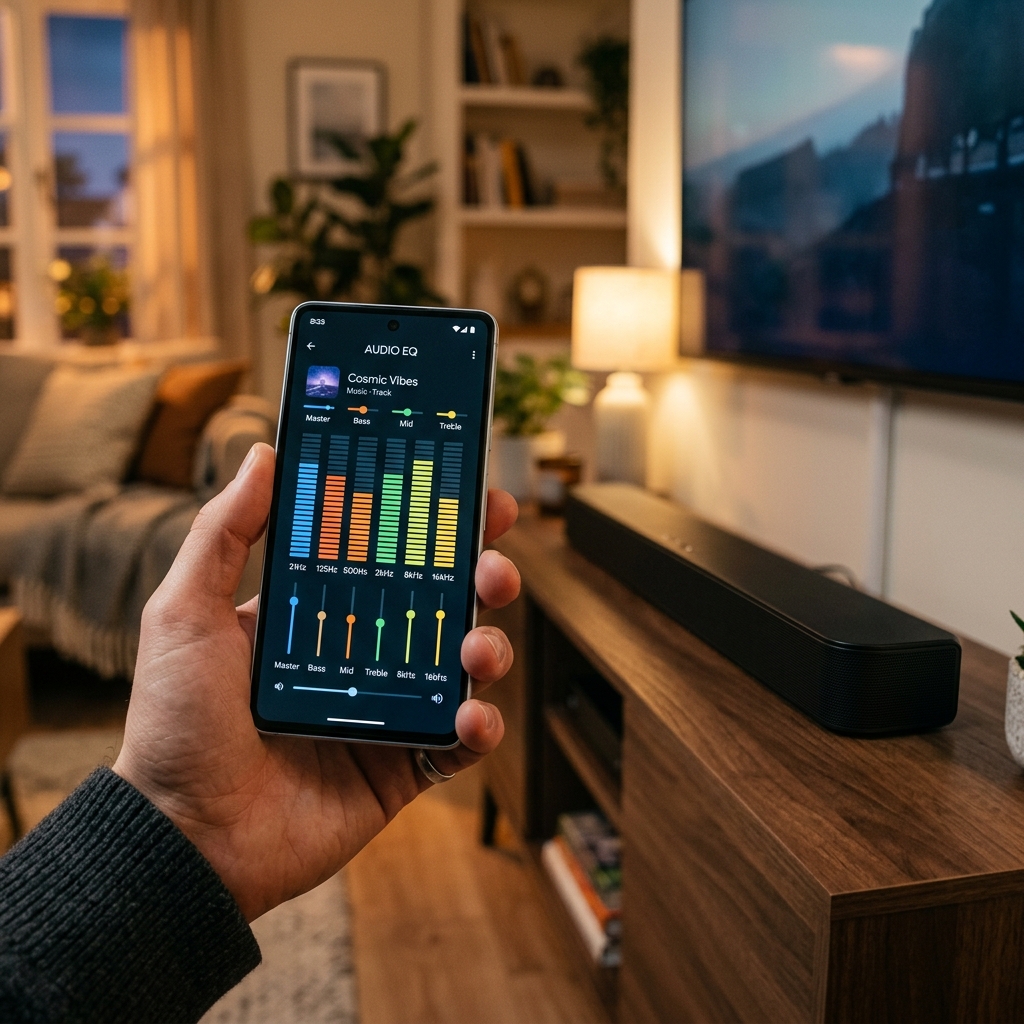
We've all been there: you're watching a movie, and the action scenes are deafeningly loud, forcing you to turn down the volume. But as soon as the characters start talking, their voices are muffled, forcing you to turn the volume right back up. This constant volume-juggling is one of the most annoying aspects of modern home entertainment.
Fortunately, you don't need a professional audio engineer to fix this. In just five minutes, you can calibrate your soundbar's settings to achieve crystal-clear dialogue and balanced sound effects. Here is the quick step-by-step guide to doing it right now.
Step 1: Enable Dialogue Enhancement (Voice Boost)
Most modern soundbars from brands like Sonos, Samsung, Sony, and Verona feature a dedicated setting designed specifically to enhance vocals. This setting is often called Dialogue Enhancement, Voice Boost, or Speech Enhancement.
When enabled, the soundbar's digital signal processor (DSP) automatically identifies frequencies associated with human speech (typically between 150 Hz and 3,000 Hz) and boosts them while slightly attenuating background frequencies. Locate this setting in your soundbar's companion app or remote control and turn it on.
Step 2: Adjust the Center Channel Level
If your soundbar is a 3.0, 3.1, or 5.1 channel system, it has a dedicated center speaker. In movie audio tracks, almost 90% of all dialogue is routed directly through this center channel, while music and special effects are sent to the left, right, and surround channels.
To make voices stand out:
- Open your soundbar's settings menu.
- Find the individual channel level controls.
- Increase the Center Channel level by +2 or +3 dB.
- Leave the Left and Right channels at 0 dB.
This simple adjustment ensures that dialogue is physically projected louder than the atmospheric sound effects playing on the sides.
Step 3: Disable "Virtual Surround" for TV Shows and News
Many soundbars offer "Virtual Surround" or "3D Audio" modes designed to simulate a wider soundstage using processing tricks. While these modes are great for blockbuster action movies, they can make dialogue sound echoing and hollow, especially for stereo (2.0) content like news, talk shows, and podcasts.
For daily viewing, switch your soundbar's sound mode to Standard or Stereo. This disables virtual processing, focusing the sound image directly in front of you and keeping voices natural and sharp.
Step 4: Enable Night Mode (Dynamic Range Compression)
If you share a wall with neighbors or watch TV late at night, turn on Night Mode (sometimes called *Smart Volume* or *Dynamic Range Compression*). This setting compresses the audio dynamics: it lowers the volume of loud explosions and boosts quiet sounds like whispers. The result is a much more consistent volume level, allowing you to hear dialogue clearly without waking up the household.
A Hardware Solution: Dedicated Acoustic Tuning
If you find yourself constantly adjusting settings and still can't hear vocals clearly, it might be an inherent limitation of your soundbar's driver size or cabinet design. Some soundbars prioritize bass punch over midrange accuracy, which inevitably muddies speech.
When shopping for audio gear, look for systems that place a premium on hardware-level vocal clarity. The Verona VN12 Soundbar is designed with custom-tuned midrange drivers and a dedicated physical center channel, ensuring that dialogue remains crisp and intelligible even without activating software compression filters. Sometimes, starting with balanced hardware acoustics is the easiest way to solve the dialogue problem.